Alexa Calendar

Role
Interaction & UX Lead · Product Designer, Alexa Mobile
Initiative
Stay Organized · Calendar
Platform
In-app · iOS · Android
Reach
1M+ monthly visits
Team
1 PM · 2 engineers · design & voice support

As interaction and UX lead, I gave a top retention driver a home it never had — an in-app Calendar page and widget that sync Gmail, Outlook, and iCloud into one schedule.

REACH
1M+
In-app visits at peak
ADOPTION
250K
Third-party accounts linked
RANKING
#1
High-Value Action for Home Productivity

Short on time? Pick your read.

Full case study — process, tradeoffs, and craft.

A retention driver with no home

Calendar & Reminder actions were a top month-1 and month-2 retention driver, and calendar linking was the #1 High-Value Action for Alexa Home Productivity. Yet the mobile app had no dedicated calendar — no daily view, no third-party sync, no easy event creation.

Part of the Stay Organized initiative, the brief mapped to three customer experience outcomes: capture something faster (quicker event creation), consume what's captured faster (a real view of the schedule), and keep content up to date faster (event editing) — none of which the app could deliver without a dedicated place to live.

One schedule, everywhere they look

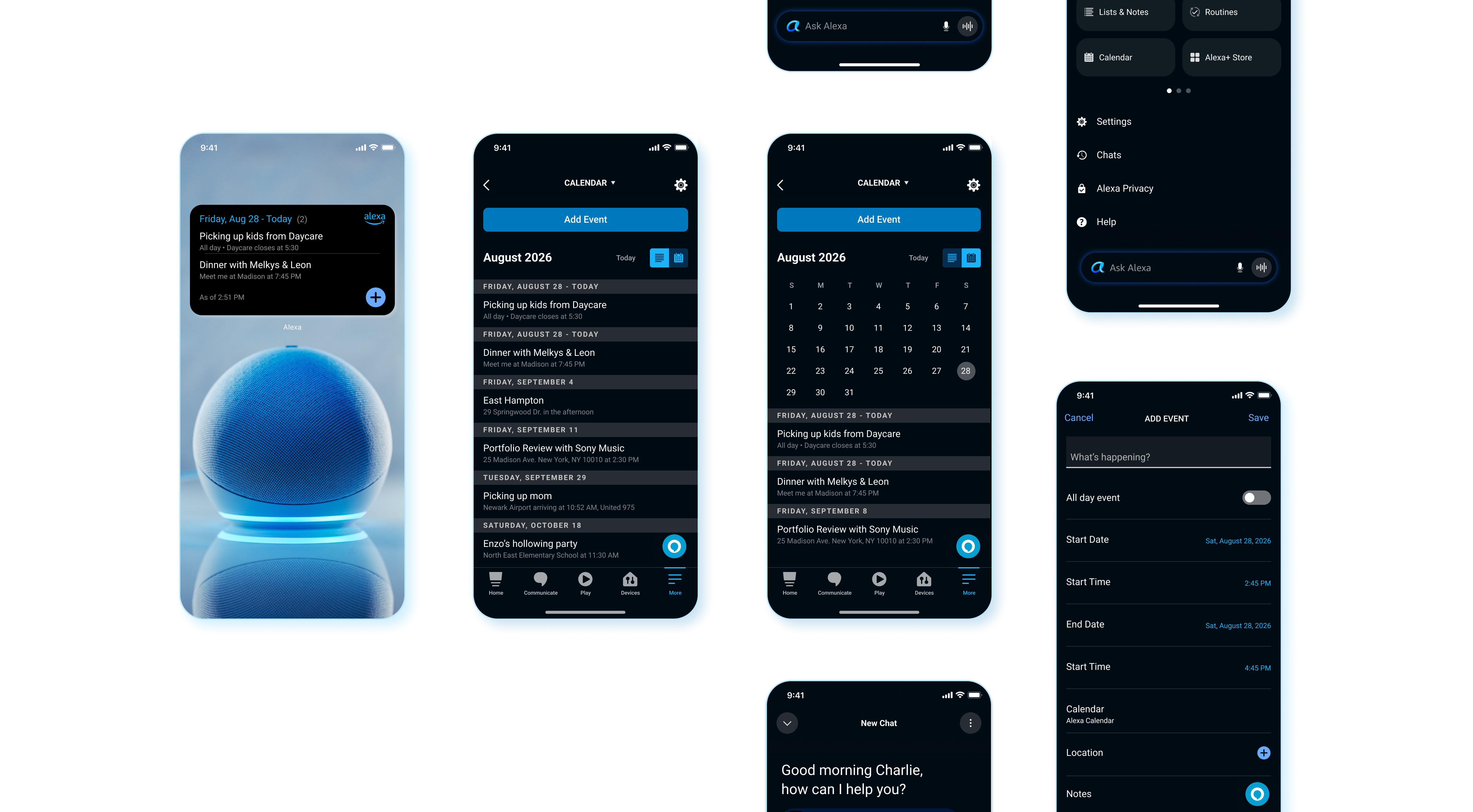
I designed an in-app Calendar page — a scrollable event list plus a month selector with daily view — that syncs with Gmail, Outlook, and iCloud so people create, edit, and manage events across every connected account in one place.

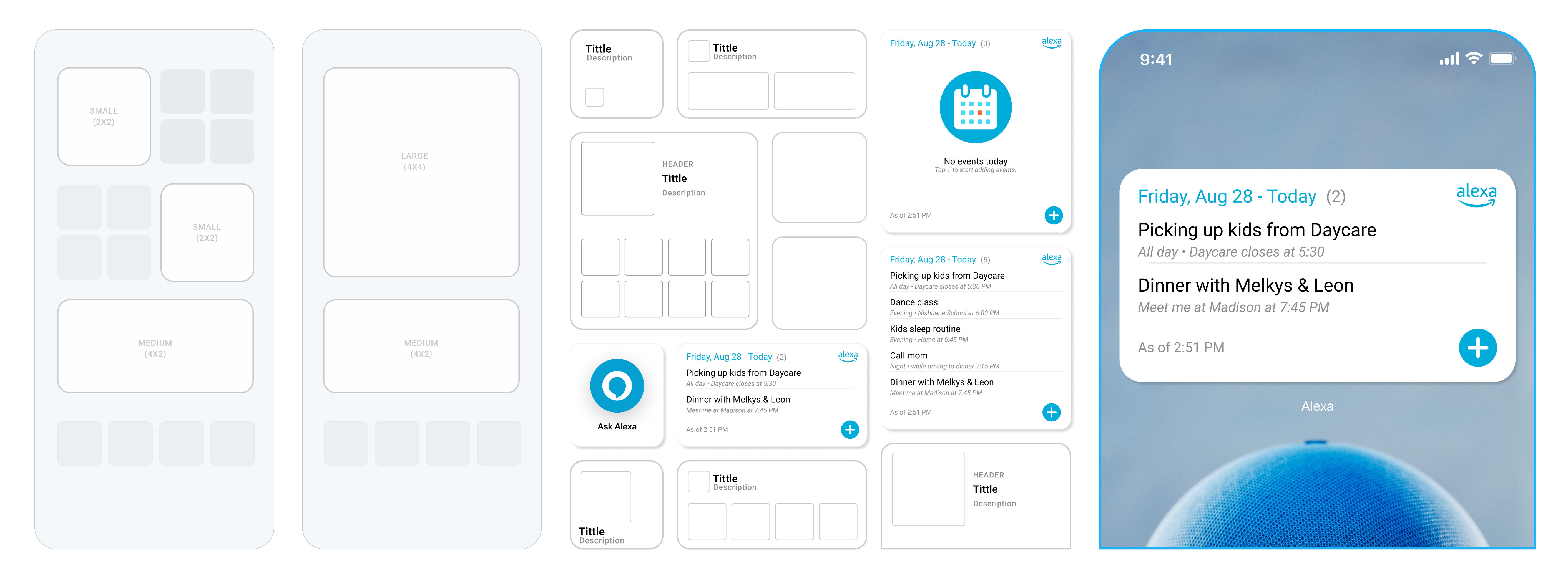
A home-screen widget for iOS and Android surfaces the day's events — from the Alexa calendar and any linked 3P calendars — without opening the app. On iOS it previews the day and deep-links straight into the page or new-event flow.

Shipped as a phased, worldwide rollout: the list view launched WW on Nov 8, 2022; the widget followed WW on Feb 2, 2023; the month selector with daily view completed the page WW on Feb 8, 2023.

I led the interaction and UX design, working closely with a design support partner and a voice support designer to bring the page and widget to their final polish, and with two engineers who built the client-side experience. A Product Manager owned the business goals this fed into and helped me prioritize what shipped in each phase.

Three lenses

Same feature, three audiences

Tap a touchpoint, then switch lenses. The words change more than the facts do — that contrast is the point.

I don’t want to open an app just to see what’s happening today. A glance at my home screen should be enough.

Widget quick-add affordance — 44×44pt min touch target, single-tap deep link, no intermediate confirmation screen. Reuses the same Medium (4×2) widget template as the shared Alexa widget system.

3K widget installs in week one — outpaced the Shopping List widget’s own launch. Every install is a standing retention surface that costs zero re-engagement spend.

I already have three calendars. I’m not manually copying events into a fourth one — sync it or I won’t use it.

Three-provider OAuth pattern — Gmail, Outlook, iCloud — one linking component reused across settings and onboarding. Sync state modeled as a single source of truth so list view, month view, and widget never disagree.

250K accounts linked, from 160K customers directed to Calendar settings — a 1.56x link rate per referred customer, and the strongest signal that sync (not just a UI) was the actual ask.

I want to add something in five seconds, not fill out a form that feels like scheduling a flight.

List view and month/day view share one event-card component and one create/edit flow — one data model, two presentations, so a fix or new field never has to be built twice.

235K events created via app GUI in January, +26% MoM. Calendar linking was already our #1 High-Value Action for Home Productivity — this gave it a surface to convert on.

See it live in the final design below

See it live in the final design below

Paired metric cards — same 3 lenses
End-UserAdd an event in 3 taps
Design System1 event-card component, 2 view modes
Business Impact+26% MoM event creation
End-UserOne synced schedule, no manual copying
Design System3 OAuth providers, 1 sync source of truth
Business Impact250K accounts linked
End-UserCheck today without opening the app
Design System44pt touch target, 1 shared widget system
Business Impact3K installs, week one
Ingress

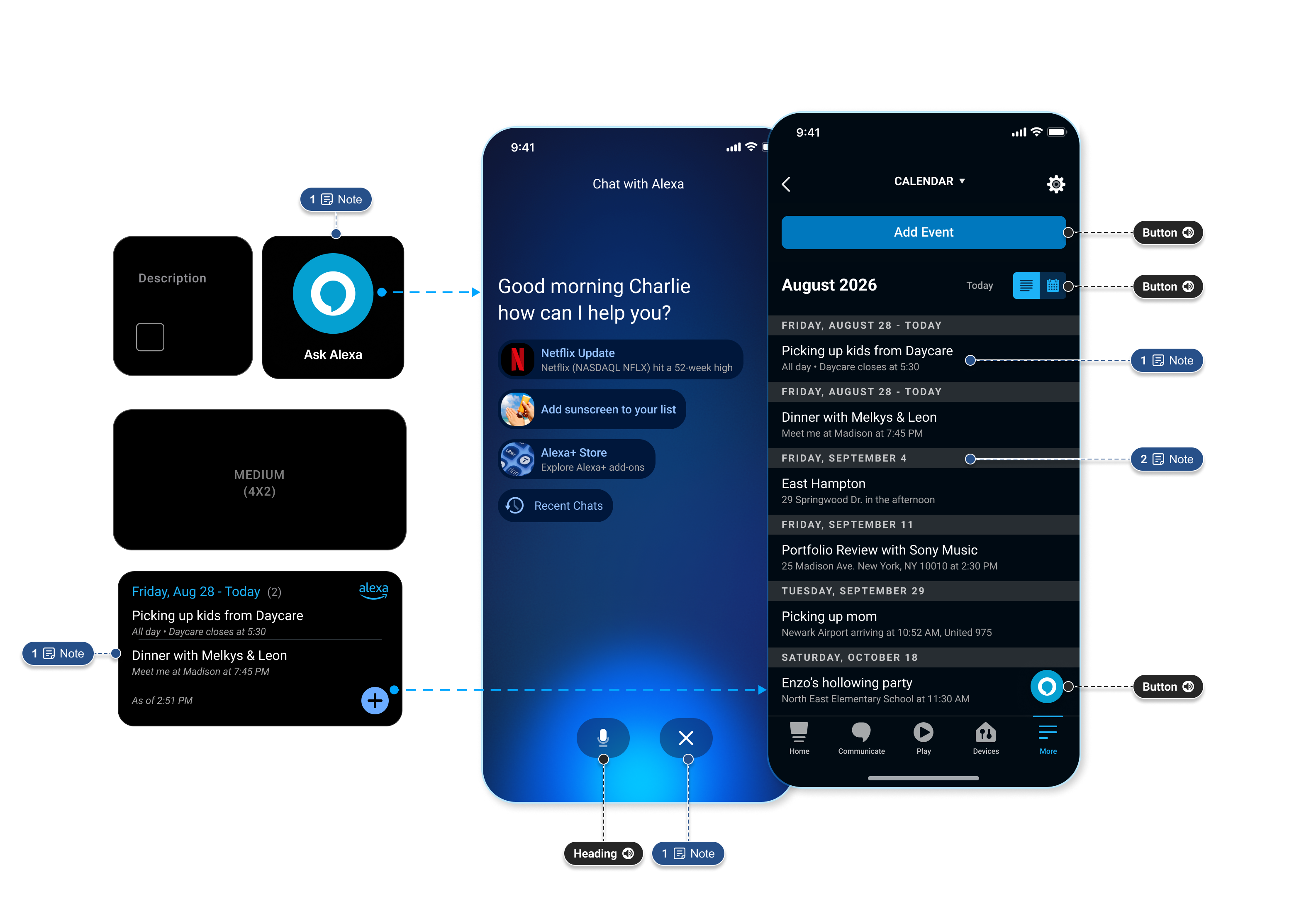
Every path leads to Calendar

Whether someone taps + on the home-screen widget, asks Alexa in chat, or opens the Calendar list directly, all roads land on the same synced schedule. Annotations mark the accessibility labels — buttons, headings, and VoiceOver notes — built into each entry point.

Annotated diagram of three ingress points into Alexa Calendar: the home-screen widget's quick-add button, the Ask Alexa chat screen answering 'what's on my calendar today,' and the in-app Calendar list view — each annotated with VoiceOver accessibility labels for buttons, headings, and notes
Ingress

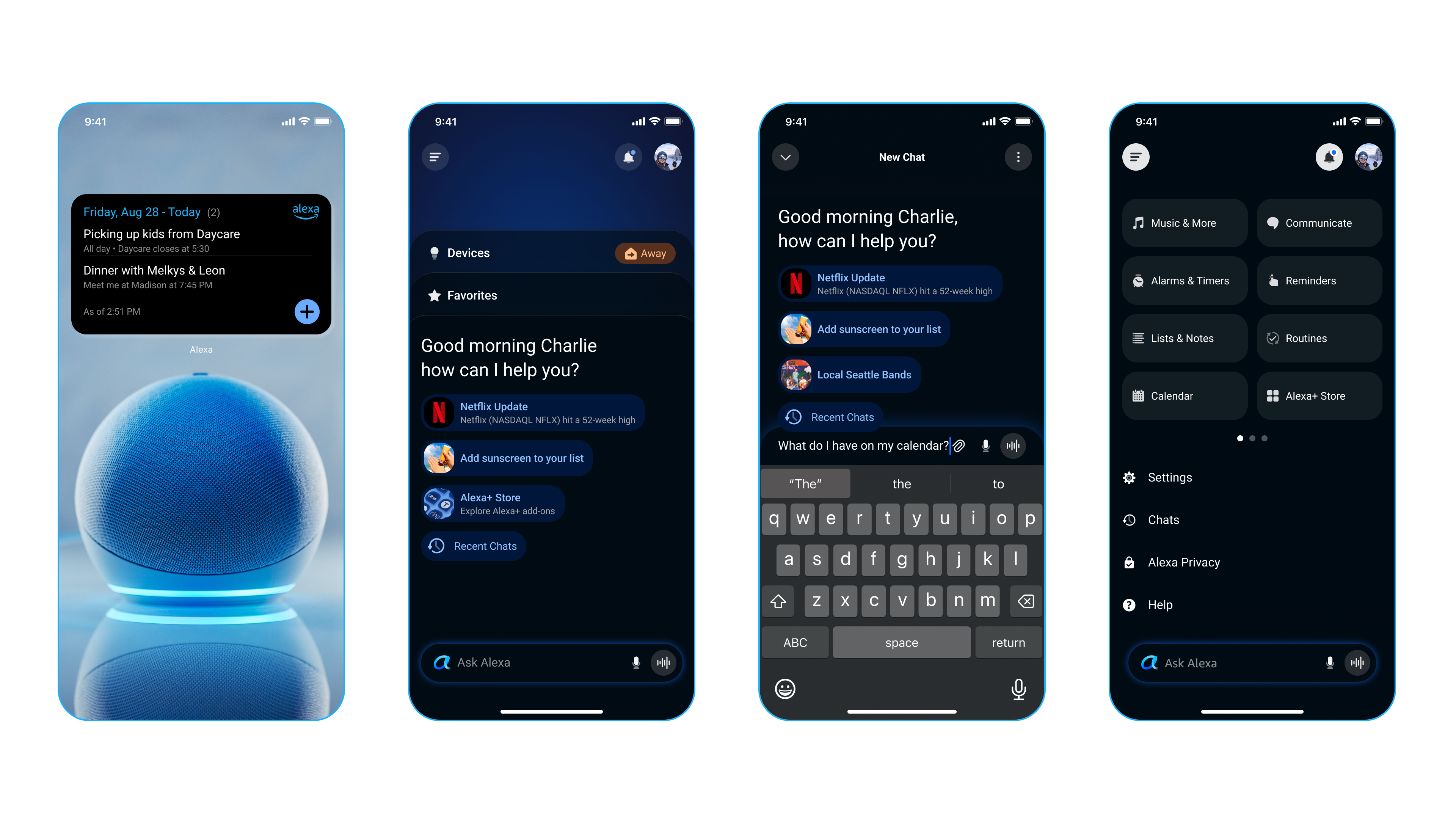
A third path: straight from Settings

Widget quick-add and Ask Alexa aren't the only doors in — Calendar also lives as its own tile in the app's Devices/More menu, so anyone who prefers to browse rather than ask or tap a widget still lands on the same schedule.

Four ingress points into Alexa Calendar highlighted across the app: the home-screen widget's quick-add button, the Devices tab's Calendar tile, the Ask Alexa chat asking what's on the calendar today, and the app's More menu with Calendar highlighted
Final design

The Calendar page, end to end

Tap a highlighted dot on the image below to see what that entry point does

Alexa+ Calendar across five screens: an Echo device showing today's agenda widget, the in-app Calendar page in list and month view, a chat conversation, the app's More menu with Calendar highlighted, and the Add Event form
Early exploration · unpolished

From concept to completion: The iterative design journey

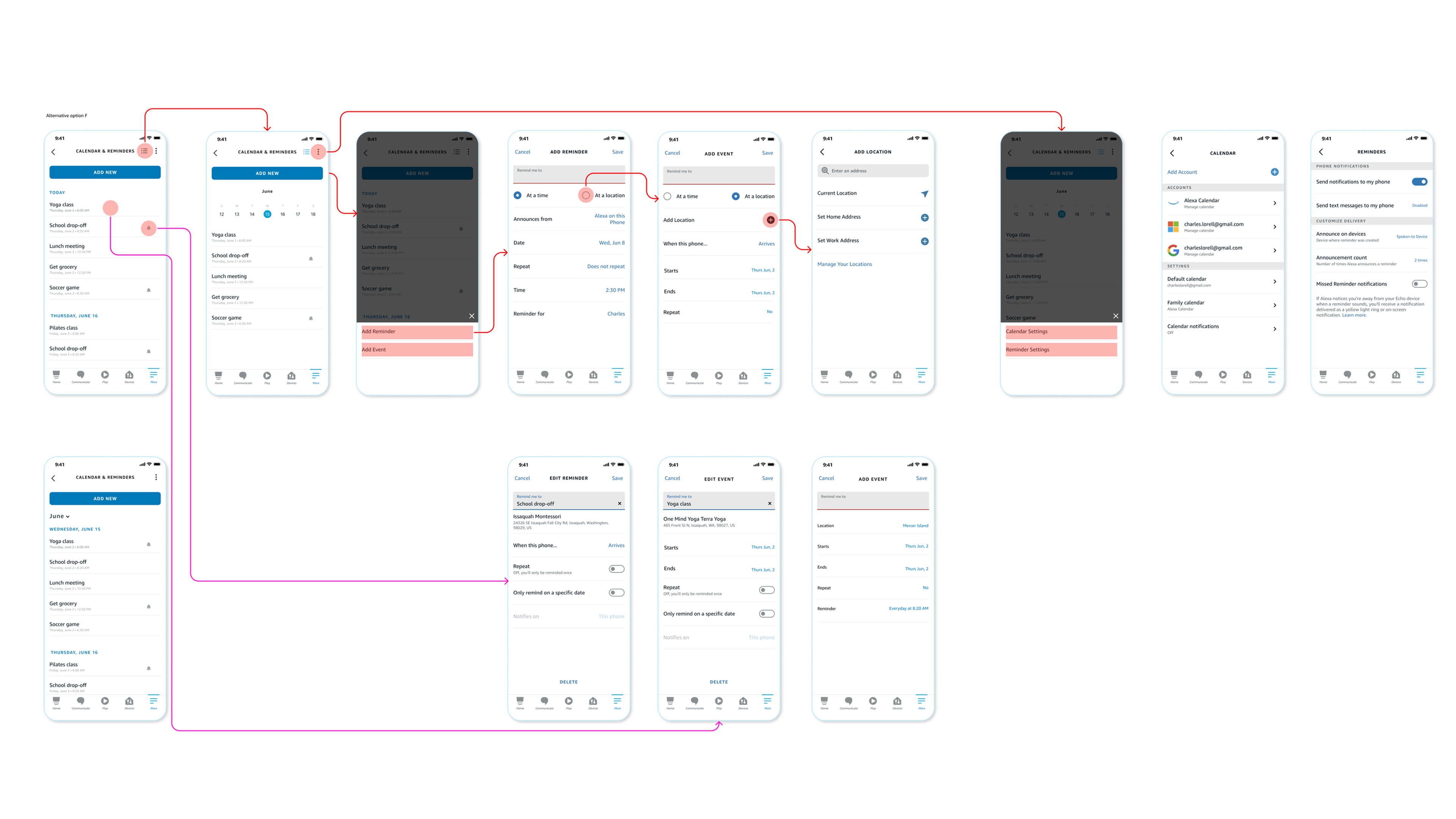
This case study traces the multi-round design process that turned early user research into the Calendar page and widget that shipped. Options A through E are successive rounds of the add-flow exploration, each building on lessons from the last — kept here as-is, not cleaned up, because it's rounds like these, not around them, that got the design right.

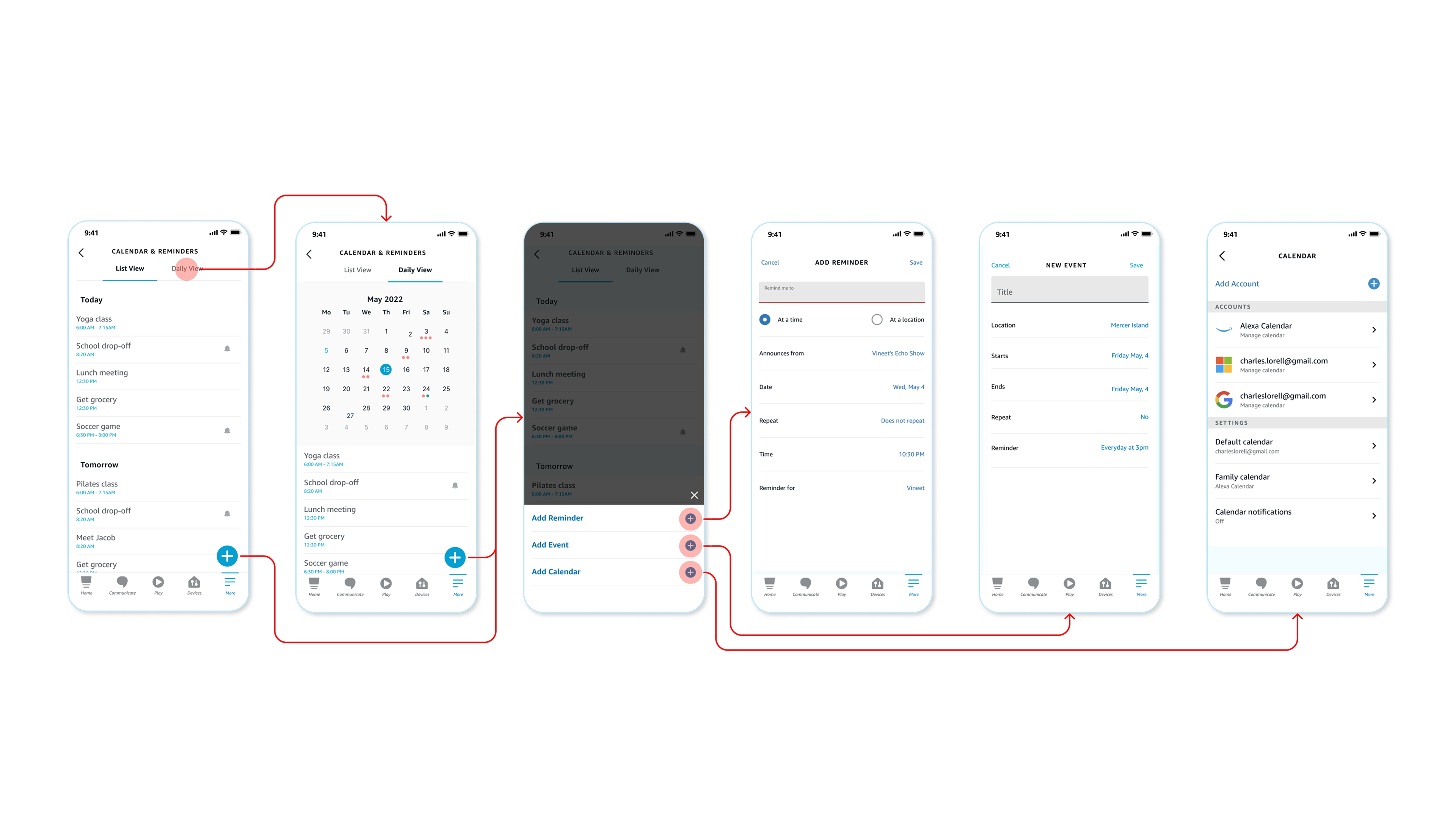
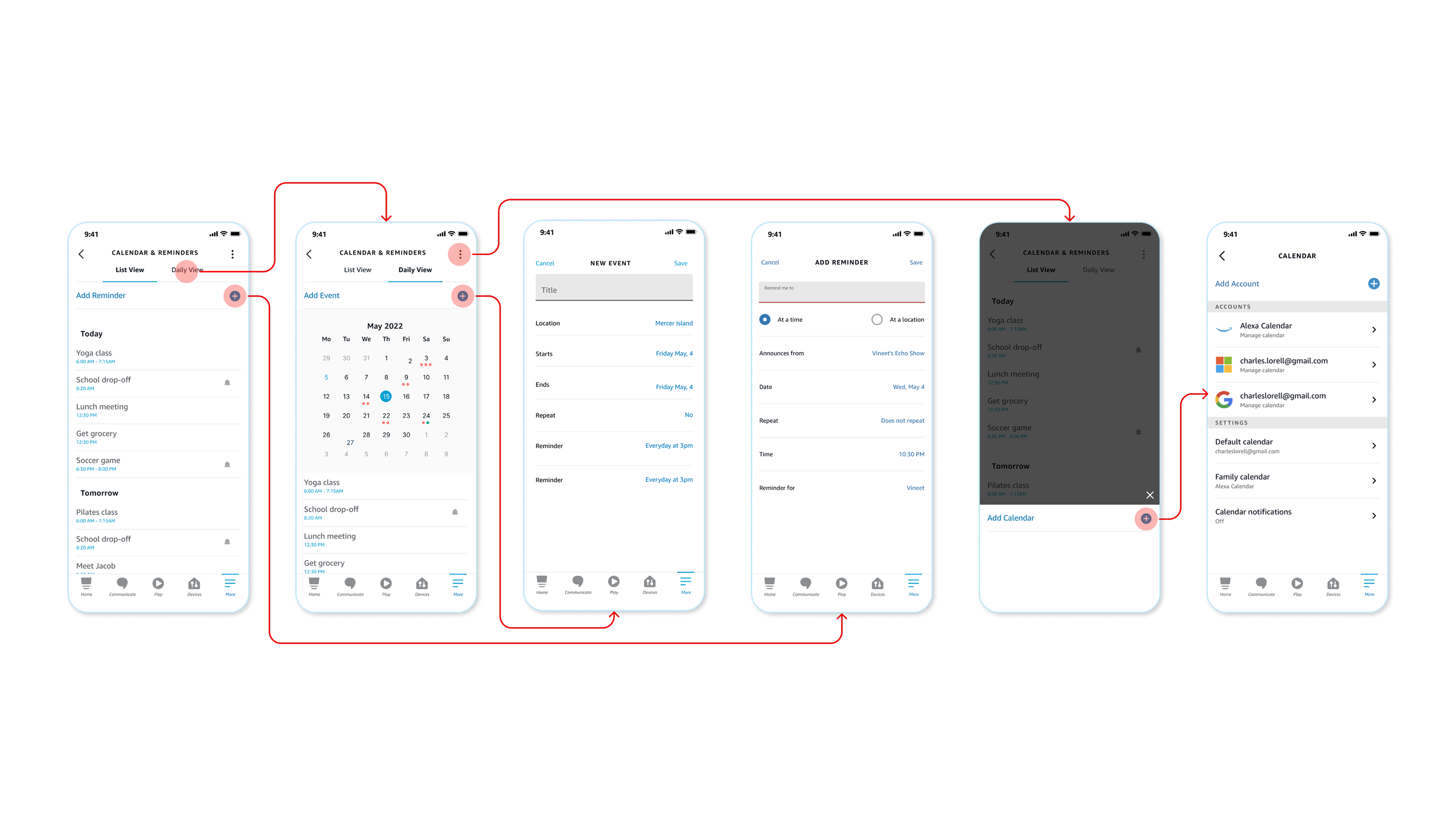
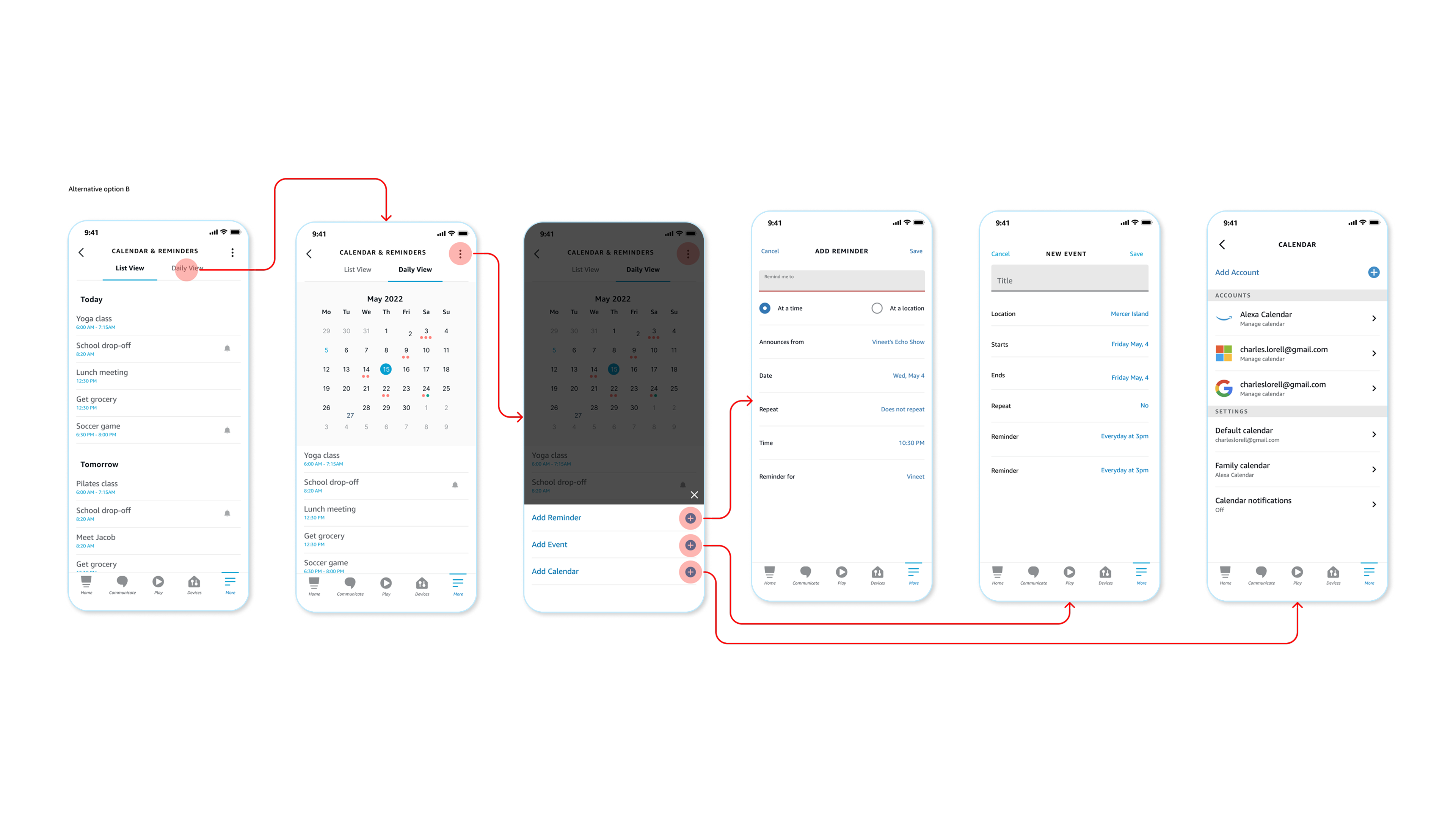
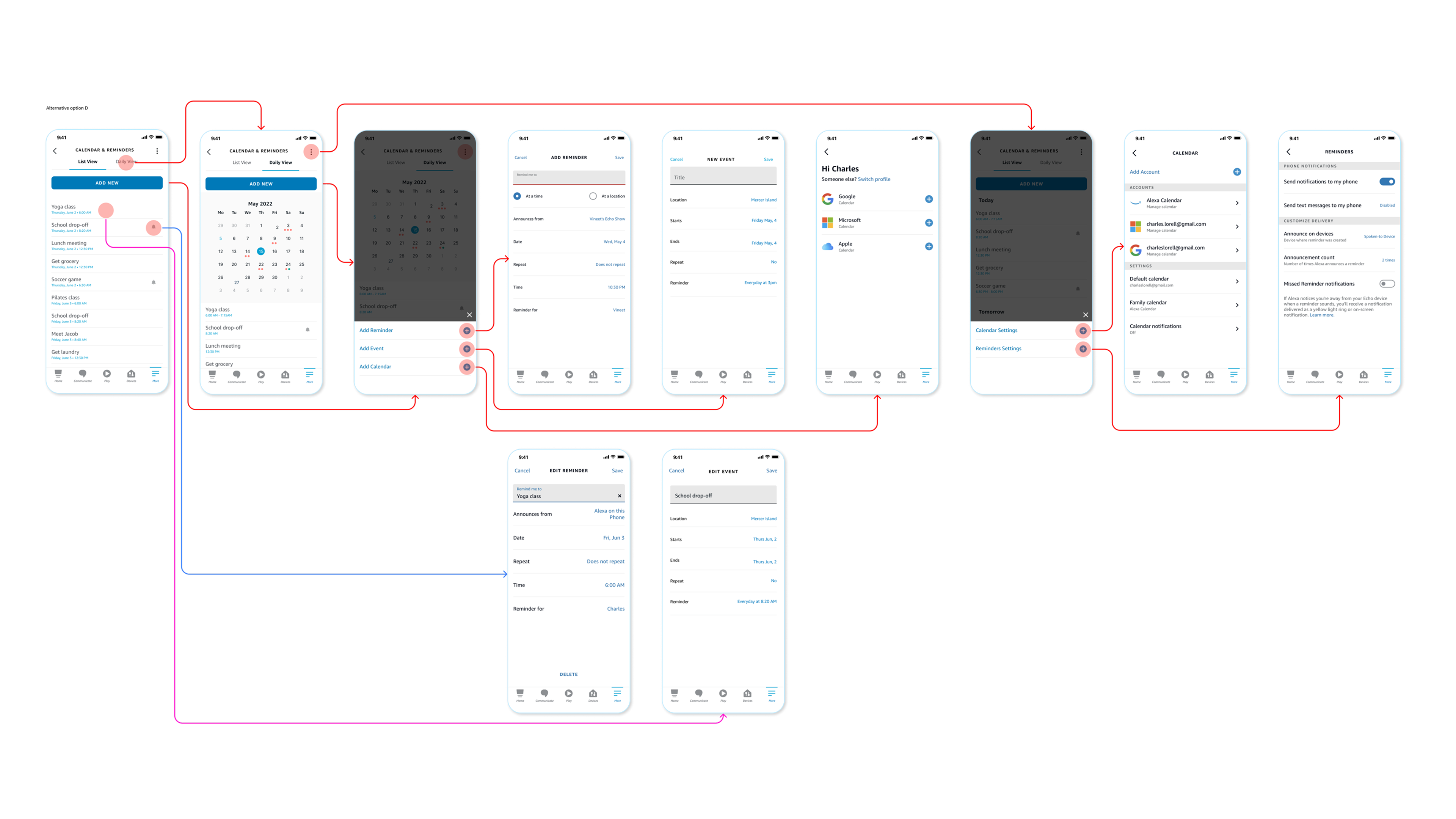
Alternative option A: an early add flow for Calendar & Reminders using inline Add Reminder and Add Event text links on the List View and Daily View screens, plus the resulting Add Reminder, New Event, and Calendar account-settings screens Alternative option B: a variant of the add flow using a kebab menu on Daily View that opens a bottom sheet with Add Reminder, Add Event, and Add Calendar, rather than a persistent plus button Alternative option C: another pass at the List View, Daily View, and add-flow screens, testing a different arrangement before the shipped design was chosen Alternative option D: a more built-out flow adding third-party account linking through a 'Hi Charles' switch-profile screen with Google, Microsoft, and Apple Calendar options, plus dedicated Edit Reminder and Edit Event screens with a delete action Alternative option E: the most built-out variant, adding location-based reminders ('At a location' alongside 'At a time') with its own Add Location screen for current location, home, and work address shortcuts

Click the image (or the zoom icon) to see it at full size, then drag to pan.

An early pass at the add flow: Add Reminder and Add Event live as inline text links on List View and Daily View, rather than behind a dedicated action menu.

A variant that moves the same actions behind a kebab menu on Daily View — tapping it opens a bottom sheet with Add Reminder, Add Event, and Add Calendar, instead of a persistent plus button.

Another pass at the same List View, Daily View, and add-flow screens, testing a different arrangement before landing on the shipped design.

A more built-out round: adding third-party account linking through a "Hi Charles" switch-profile screen (Google, Microsoft, and Apple Calendar), plus dedicated Edit Reminder and Edit Event screens with their own delete action.

The most built-out variant — introducing location-based reminders ("At a location" alongside "At a time"), with its own Add Location screen for current location, home, and work address shortcuts.

Impact

Measurable outcomes

Visits
0
Customers visited the page at Dec '22 peak, 950K retained by Jan '23
Events
0
New events created via app GUI in Jan — +26% MoM growth
Links
0
3P accounts linked, from 160K customers directed to Calendar settings
Widget
0
Installs in week one, outpacing Shopping List

Give the behavior a home

Calendar linking was already a top retention lever — it just had nowhere to live on mobile. Once it did, adoption came fast: 1M+ visits, 250K account links, and a widget that outpaced our previous Shopping List launch in week one.

The clearest wins often aren't new behaviors — they're proven ones you finally give a place to happen.

If I were starting over, I'd have pushed harder for research and A/B testing before committing engineering time — several feature bets here were made on directional signal rather than validated data, and a tighter research partnership from the start would have let us measure impact at each decision point instead of after launch.

Widgets

The day, one glance away

Calendar's widget carries the same "meet people before they open the app" idea that worked for Shopping List, built on the same home-screen widget system. It surfaces today's agenda — Alexa and linked 3P calendars together — right on the home screen. iOS previews the day and deep-links into the page or a new event — the platform caps a small widget to one tap target, so the design leans on linking rather than in-place editing. Android supports real widget-level interaction, so people can create and manage events without ever leaving the home screen. Both ship one committed size rather than a scaled-up duplicate: home screen space is the customer's, and a widget earns its spot there — it's exactly as easy to delete as it is to install.

Tap the glowing Medium widget below to try real sizing and the Android grid

Widget building blocks: the Small (2x2), Large (4x4), and Medium (4x2) home-screen widget size templates, anatomy diagrams marking Title, Header, and Description slots, and the resulting Calendar widget states — empty 'No events today,' a two-event day, and a five-event day — culminating in the shipped Echo home-screen widget
Charles's superpower is how fast he comes up to speed on a customer problem and churns out options. Great collaborative attitude — he doesn't ask who owns what, he asks what helps us move fast for the customer.
Michelle Ma · Sr. UX Designer, Alexa, L6
Next project I'm Going Shopping