Slider
Sliders express a range of values along a bar, from which the customer can select a single value. They are used for adjusting settings such as device display brightness, speaker volume, etc. Sliders reflect the current state of what they are controlling. If the customer makes adjustments with the sliders, the changes should be immediate and noticeable.
Building Blocks
Icon (start)
Optional, illustrates the impact of decreasing the value. Tapping it steps the value toward the minimum — customize the step size for your use case.
Active Portion of the Track
Indicates the portion of the range from the minimum value to the selected value.
Thumb Control
Dragged by the customer left or right to select a value within the slider's range.
Inactive Portion of the Track
Indicates the portion of the range from the selected value to the maximum value.
Icon (end)
Optional, illustrates the impact of increasing the value. Tapping it steps the value toward the maximum — customize the step size for your use case.
Press State
Shown on the Thumb Control while the customer is actively interacting with the slider.
Value Indicator (above thumb)
Optional — recommended when the value has real meaning to the customer (display brightness, volume). Moves with the Thumb Control and should only be visible while the thumb is in its press state.
Label
Optional — indicates what the slider is controlling. Can also be placed elsewhere on the screen instead.
Value Indicator (under label)
An alternative placement — the value indicator sits under the primary label text instead of above the thumb.
One-touch action (e.g. mute)
When a one-touch action is needed, the left icon can double as an action button instead of a stepper — in this case it has two states and there is no right icon. Tapping it drops the value to its minimum; tapping it again restores the value it held before.
Variations of Quantity Sliders
Centered Sliders
In an audio balance control, the range of value is bipolar and the minimum value is in the center of the slider. The Thumb Control can be moved to the left or right of center to adjust the value. The Active Portion of the Track grows from the minimum value (in this case, the center of the slider) to the selected value (where the Thumb Control is located).
Segmented Sliders
Use segmented sliders to choose between discrete values. Options are represented by Notches; the thumb snaps to the closest notch on release, or to a tapped notch. Recommend 5 levels, up to 7 — for finer control, use a continuous slider instead.
From the Figma library
The production specimens, pulled directly from the Alexa Mobile UI Library. Each variant ships in light and dark, with configurable end labels (icon or text), primary and secondary text, and pressed states.



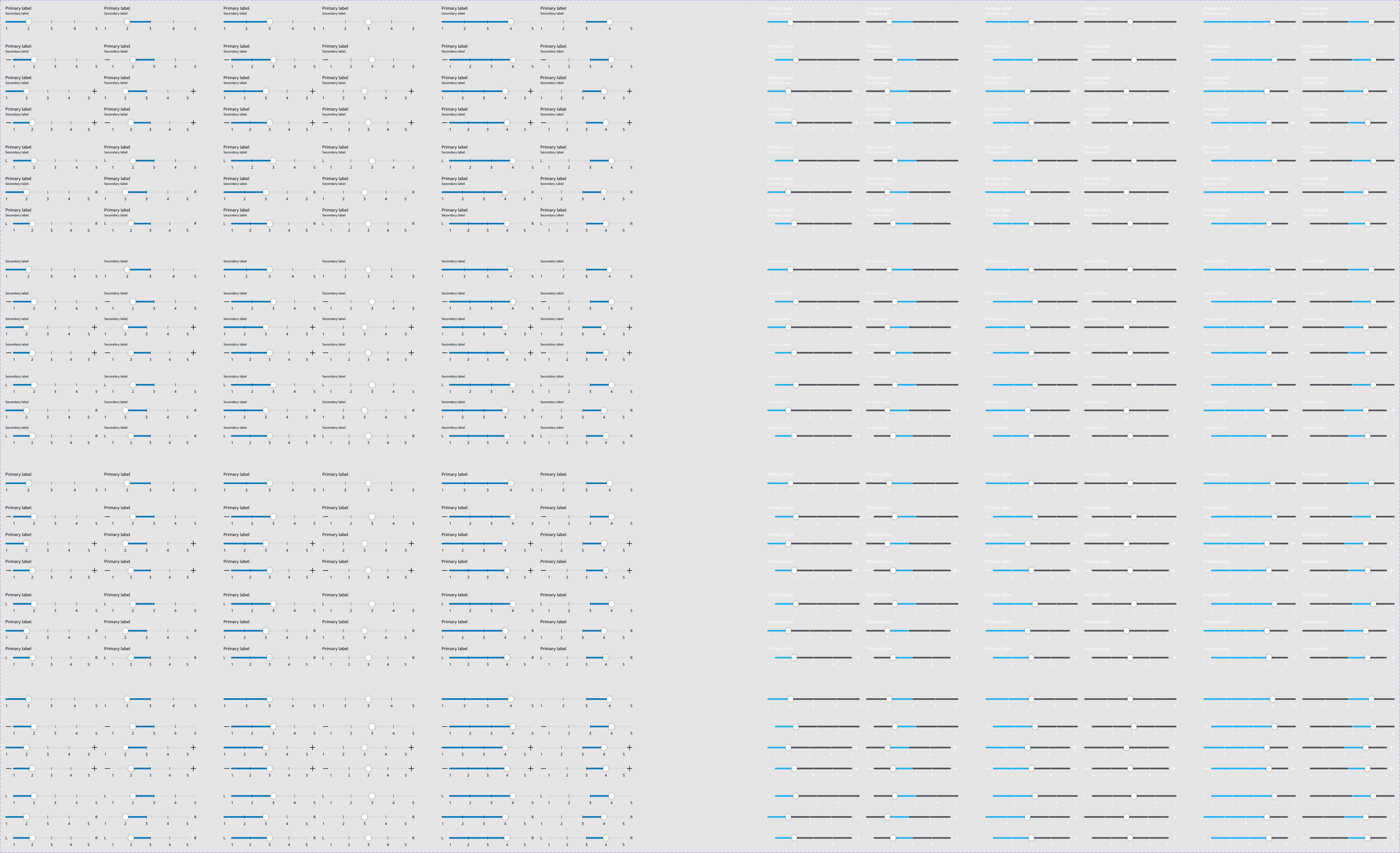
Example usage
Slider is a component that displays a slider bar, starts from the left side with a min value. You can also display the sliding value above the thumb position by specifying a label type. Leading and trailing icon slots allow you to pass in an icon/button to create a touchable control for your slider. If neither is set for leadingSlotConfig or trailingSlotConfig, the respective element won't be touchable.
<Slider
    labelType="percentage"
    secondaryLabel="Volume"
    value={volume}
    onChange={setVolume}
    leadingSlotConfig={ {
        icon: 'ic_volume_low',
        onPress: () => {}
    } }
    trailingSlotConfig={ {
        icon: 'ic_volume_high',
        onPress: () => {}
    } }
/>
Props
labelType
SliderLabelType
—
Is the label a percentage or raw value?
secondaryLabel
string
—
—
primaryLabel
string
—
—
leadingSlotConfig
SliderSlotConfig
—
Config for the left icon and its behavior.
trailingSlotConfig
SliderSlotConfig
—
Config for the right icon and its behavior.
Example
- brightness-lowleadingSlotConfig
- brightness-hightrailingSlotConfig
- percentagelabelType
- volume-levelsecondaryLabel
- volume-25primaryLabel
Quantity sliders
Dimensions
Icon
24 x 24dp
Leading / trailing icon, when configured
Slider — centered South large
60dp
Standard Slider Handle
Compact drift-view, corner radius
Normal state
20 x 20dp, color: neutral0
Dark Theme Color: neutral95, top layer 2 border thickness
#000000, 6% opacity
Pressed state
32 x 32dp, color: neutral0
Dark Theme Color: neutral95, top layer 2 border thickness
#000000, 20% opacity
Slider Active Color (Quantity Sliders)
Container color: primary40
Dark theme color: primary80
Slider Background Color
Container color: neutral90
Dark theme color: neutral20
Slider Active Color (Location Sliders)
Container color: tertiary40
Dark theme color: tertiary80
Location Slider — Handle
Compact drift-view, corner radius
Normal state 20 x 20dp
Color mixed: tertiary40 / 20% opacity
Dark Theme Color: tertiary80 / 20% opacity
Pressed state 32 x 32dp
Horizontal Segment Line
1.5 x 12dp
Radius: 1
Color: neutral40
Vertically centered within track
Theming
1. Quantity sliders
2. Location sliders
Accessibility
The slider is a non-standard control — there's no native HTML element for it — so every one of these behaviors has to be built deliberately rather than inherited for free the way a checkbox or a native range input gets them.
Labeling & screen reader output
The track carries role="slider" with aria-valuemin, aria-valuemax, and aria-valuenow kept in sync on every change — that's what lets VoiceOver or TalkBack announce a current value at all. When the raw number isn't meaningful on its own (a day of the week, a named level), pair it with aria-valuetext so the announcement speaks the label a sighted user sees, not just the underlying integer. The Label building block (H) should be wired in as aria-labelledby rather than left purely visual, so the control announces what it controls before it announces its value.
role="slider"
Thumb Control
Identifies the element as a slider to assistive tech.
aria-valuemin/max/now
Thumb Control
Kept in sync every time the value changes — not just on release.
aria-valuetext
Thumb Control
Optional — set when the raw number needs a human-readable equivalent.
aria-labelledby
Thumb Control
Points at the Label (H), so the control's purpose is announced, not just its value.
Keyboard interaction
Focus lands on the Thumb Control itself, not the track — same as dragging, the keyboard should move the value, never the page scroll position. The end icons (A, E), when present, are separate stops in the tab order after the thumb, each behaving like a button rather than part of the slider's own key handling.
Left / Down Arrow
Decreases the value by one step.
Right / Up Arrow
Increases the value by one step.
Home
Jumps to the minimum value.
End
Jumps to the maximum value.
Page Up / Page Down
Optional — a larger jump than a single arrow-key step, useful on a wide range (e.g. a 0–100 brightness scale) so reaching the far end doesn't take dozens of key presses.
Touch targets & the segmented variant
The visible 20dp thumb (redline #3, Specification tab) is well under a comfortable touch target on its own — the actual hit area needs to extend beyond the painted circle so a fingertip doesn't have to land pixel-perfectly on it. On the Segmented Slider, each notch is a discrete stop rather than a point on a continuous scale, so its hit area should be sized and spaced the same way a row of small buttons would be — not left as thin as the visual tick mark drawn on the track.
Motion & state
The Press State (F) is a visual cue for sighted users tracking the drag — it carries no meaning on its own for a screen reader user, whose feedback comes entirely from the live aria-valuenow/aria-valuetext updates instead. Value changes should be announced as they happen during a drag, not batched into a single announcement on release, so a screen reader user gets the same continuous feedback a sighted user gets from watching the fill grow.
Sources
Keyboard interaction and ARIA role/state guidance adapted from the W3C ARIA Authoring Practices Guide — Slider Pattern. Touch-target sizing informed by Android accessibility touch-target guidance and general Material Design 3 slider accessibility principles at m3.material.io/components/sliders/accessibility. Content here is written for this component's own anatomy, not reproduced from either source.